
Key highlights
From 1 June 2026, BIS requires new Foreign Manufacturers Certification Scheme (FMCS) grant-of-license applications through the Manakonline portal. Paper applications are no longer accepted for this route. It is not fully paperless: BIS’s linked manual says applicants pay the fee offline in US dollars and upload proof. The notice does not clearly cover renewals or pending paper cases.
- Online only from 1 June 2026. BIS accepted hard copies only until 31 May 2026. New FMCS applications now go through the Manakonline portal.
- Set up before you apply. Create your account, verify it with the link BIS sends to your email and mobile, and complete your Organization profile to 100%. The application form stays locked until then.
- Nine sections, then payment. The form saves as a draft until you pay. The fee is calculated in INR, you pay the USD equivalent offline, and you upload the payment proof. BIS receives the application only after that.
- Some things haven’t changed. You still need an Authorized Indian Representative (AIR), and a BIS factory inspection still applies. The BIS user manual doesn’t mention a digital signature, so have an authorised person sign your company documents and confirm the exact requirement with BIS.
On this page
A BIS FMCS online application lets foreign manufacturers apply for a BIS licence under the Foreign Manufacturers Certification Scheme (FMCS) through the Manakonline portal. Since 1 June 2026, BIS accepts new FMCS applications online only. Before you start, appoint an Authorized Indian Representative (AIR), confirm the correct Indian Standard for your product, and prepare your factory and testing documents. When you reach the payment step, follow the instructions shown on the portal.
If your factory is outside India and you want to sell products covered by the relevant BIS certification requirements in the Indian market, you need to understand the FMCS application process before starting.
Under the earlier process, applicants submitted printed documents to BIS. That option ended on 31 May 2026. From 1 June 2026, new applications must be submitted through the official Manakonline portal.
Moving to online filing removes the need to courier an application package. But you still have to prepare the technical documents, arrange payment and make your factory ready for inspection.
What changed in the BIS FMCS application process in June 2026
BIS now requires new FMCS applications to be submitted online through Manakonline. The official BIS application guidance confirms that hard-copy applications were accepted only up to 31 May 2026.
This change will affect how you submit your application. Key certification requirements, such as compliance with relevant Indian Standards, AIR appointment, verification of the factory's manufacturing and testing facilities, etc., will still apply.
| Parameter | Offline (until 31 May 2026) | Online (from 1 June 2026) |
| Filing | Form VI couriered to BIS | Manakonline portal only |
| Account | Not needed | Mandatory, email and mobile OTP |
| Documents | Hard copies | PDF or Excel upload, 20 MB per file |
| Fee calculation | Done by hand | Auto-calculated in INR |
| Payment | USD wire or draft | USD offline transfer, bank advice uploaded |
| Tracking | Phone and email follow-up | Live applicant dashboard |
| Offline submission | Accepted | Not accepted |
What does “no hard copies” mean for a new BIS FMCS application?
It refers to how you file. BIS’s “How to Apply” page says paper or offline applications for a new grant of license were accepted only until 31 May 2026, and from 1 June 2026 only the Manakonline portal is accepted.
It doesn’t make the whole process paperless. The BIS user manual says you pay the fee in US dollars offline and upload proof of payment. Neither page says whether renewals or paper cases already submitted are affected, so check with BIS if that applies to you.
Before You Start the FMCS Application
Arrange your company information and supporting documents before opening the application. You should also appoint an eligible Authorized Indian Representative (AIR) and prepare the nomination documents required by BIS.
Keep the following information available.
- Company registration and organisation details
- Manufacturing factory details
- Product details and applicable Indian Standard (IS)
- Management and authorised representative details
- Manufacturing process information and supporting documents
- Packing and brand details
- Testing and inspection information
- Test reports and other required documents
- Declaration and undertaking details
- Payment information and supporting bank document
The exact documents depend on the application requirements shown by BIS. Follow the instructions displayed in the portal for your product.
Part 1: Register and Log In to Manakonline
The first part of the process is to create your account, verify it, and open the FMCS service.
Step 1: Open the Manakonline website
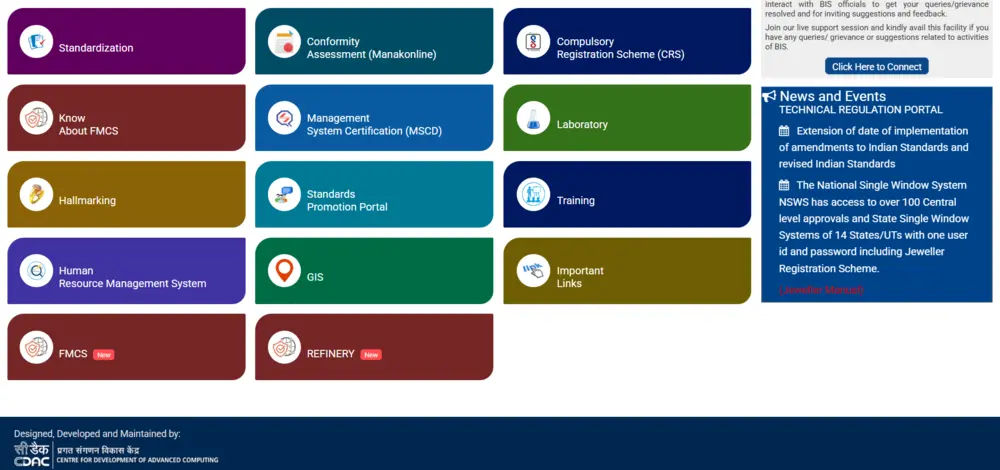
Go to www.manakonline.in and open the homepage. You will see different BIS services listed there. Look for the FMCS tile and click on it to access the Foreign Manufacturers Certification Scheme section.
Step 2: Open the FMCS login page
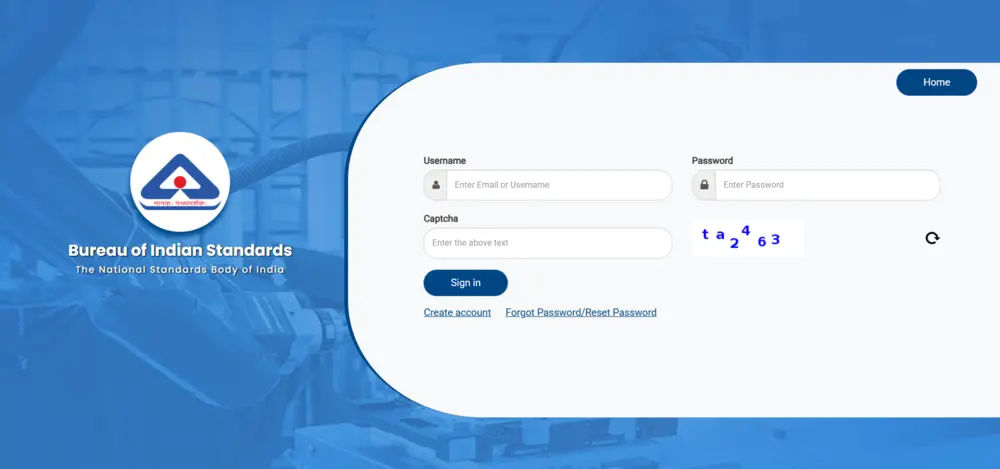
After clicking the FMCS tile, you will be taken to the login page. If you already have an account, enter your username and password, complete the captcha, and click Sign In to access your account. If you are a new applicant and have not registered yet, click Create account to begin the registration process.
Step 3: Complete the registration form
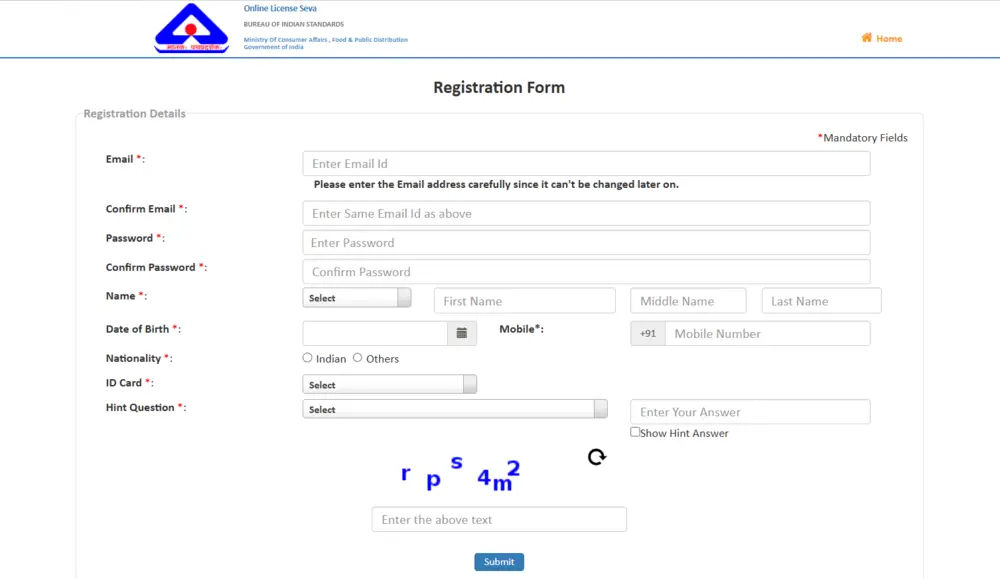
Click Create account to open the registration form if you are a new applicant. Fill in all the required details and click Submit. A verification link will be sent to the email address and mobile number you provided during registration. If you have already registered, enter your username and password, complete the captcha, and click Sign In to access your account.
Step 4: Verify your registered account
After submitting the registration form, open the email account you used during registration and look for the verification email from BIS. Open the email and click the verification link to activate your account. Once your account is verified, you can return to the BIS portal and log in using your registered credentials.
Step 5: Confirm successful verification
After clicking the verification link, you will see a confirmation message once your account has been verified successfully. Once the verification is complete, return to the BIS portal login page to sign in to your account.
Step 6: Log in to your account
Enter your registered username and password, then complete the captcha shown on the screen. Click Sign In to log in to your account and continue with the FMCS application process.
Step 7: Click the FMCS tile after login
After logging in, click the "FMCS New" tile to open the FMCS service. The Applicant Dashboard will appear, where you can access your profile and start the new licence application.
Part 2: Complete the Organisation Profile
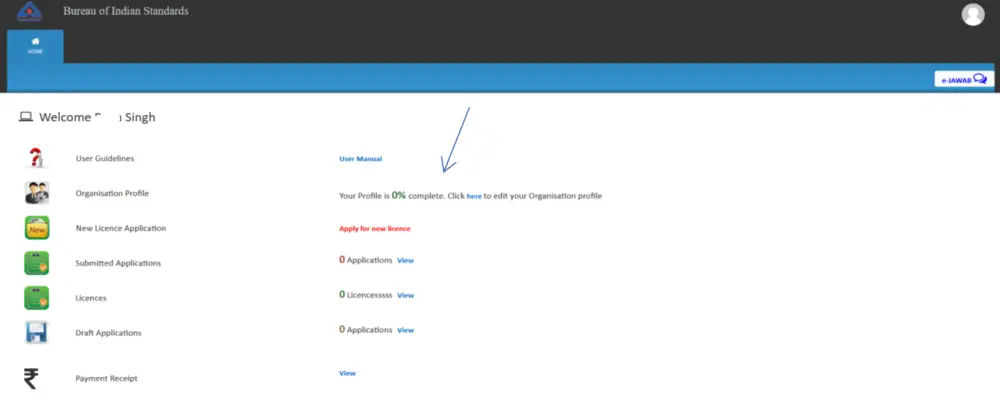
Before applying for a new licence, complete your organisation profile in the BIS portal. Make sure you fill in all the required details and save the information. According to the manual, your profile must reach 100% completion before you can access the new licence application.
Step 8: Open the Applicant Dashboard
After clicking the FMCS tile, you will be taken to the Applicant Dashboard. From there, find the profile section and open it to enter your organisation’s details. Complete all the required fields and save the information before moving on to the next step.
Step 9: Enter the Organisation details
The organisation details form will open on your screen. Fill in all the required information in the available fields, complete each mandatory section, and upload the supporting documents requested in the form. Before moving further, review the details to make sure everything is accurate and complete.
Step 10: Submit the Organisation profile
Once you have entered all the required details and uploaded the supporting documents, click Submit. The system will display an alert message confirming that your organisation profile has been completed.
Step 11: Confirm that your profile is 100% complete
Return to the Applicant Dashboard and check your organisation profile status. Once the profile is complete, the dashboard will display the confirmation message "Your Profile is 100% complete". Make sure this message appears before proceeding, as you can apply for a new license only after completing your organisation profile.
Part 3: Apply for a New BIS License
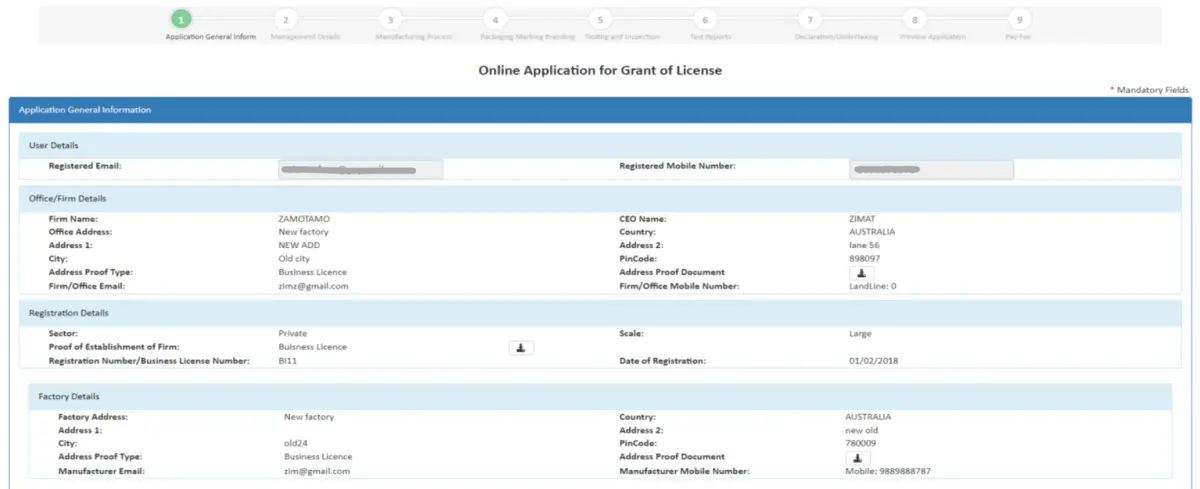
After completing your organisation profile, return to the Applicant Dashboard and click Apply for New Licence to start your FMCS application. The application consists of nine sections, including Application General Information, Management Details, Manufacturing Process, Packing and Brand Details, Testing and Inspection Details, Test Report, Declaration and Undertaking, Application Preview, and Pay Application Fee.
As you enter information in each section, the system saves it as a draft by default. The application remains in draft status until the payment is completed.
Step 12: Click Apply for New License
Open the Applicant Dashboard and click Apply for New License to start your FMCS application. The first section, Application General Information, will open with some details already filled in from your organisation profile. Review the pre-filled information and complete any remaining required fields before moving to the next section.
Step 13: Complete Application General Information
This is the first of the nine application sections, Application General Information. Review the details already filled in from your organisation profile and enter any remaining required information. You will also need to specify the Indian Standard (IS) for which you are applying for a license. If you do not know the IS number, click “Please click here to know Standards” and use the available search to find the relevant Indian Standard. Once you have completed all the required details, click Next to proceed to the Management Details section.
Step 14: Complete Management details
The second section is Management Details. Enter all the required information in the available fields and provide the supporting details requested in the form. Once you have completed this section, click Next to proceed to Section 3, Manufacturing Process.
Step 15: Complete Manufacturing Process
The third section is Manufacturing Process. Enter all the required details about the manufacturing process in the available fields and upload the requested supporting documents. Once you have completed the section and uploaded the necessary documents, click Next to proceed to the next section, Packing and Brand Details.
Step 16: Complete Packing and Brand Details
The fourth section is Packing and Brand Details. Enter all the required information and upload the requested supporting documents. Read the Terms and Conditions provided in this section and click Agree as instructed in the manual. Once you have completed all the required fields and uploaded the documents, click Next to proceed to the next section, Testing and Inspection Details.
Step 17: Complete Testing and Inspection Details
The fifth section is Testing and Inspection Details. Enter all the required information in the available fields and upload the requested supporting documents. Once you have completed the section and uploaded the necessary documents, click Next to proceed to the next section, Test Report.
Step 18: Complete Test Report
The sixth section is Test Report. Enter all the mandatory details requested in the form and upload the required supporting documents. Once you have completed the required fields and uploaded the documents, click Next to proceed to the next section, Declaration and Undertaking.
Step 19: Complete Declaration and Undertaking
The seventh section is Declaration and Undertaking. Enter all the required details in the available fields and upload the requested supporting documents. Review the declarations and complete the form as instructed in the portal. Once you have provided all the mandatory information, click Next to proceed to the Application Preview section.
Step 20: Review the Application Preview
The eighth section is Application Preview. Use this section to review the information you entered in the previous sections before proceeding to payment. Check the organisation details and other application information carefully to make sure everything is accurate.
If you find any errors, click Back to return to the relevant section and make the necessary changes. Once you have reviewed the application and confirmed that the details are correct, proceed to the final section for payment.
Step 21: Open Pay application Fee
The ninth and final section is Pay Application Fee. The system automatically calculates the application fee in Indian rupees (INR), and you must pay the equivalent amount in US dollars (USD) through offline payment.
After making the payment, enter the required payment details in the portal and upload the supporting payment document. Review the information carefully before saving the details.
Step 22: Enter the USD payment details
Follow the payment instructions provided in your application and make the required offline payment in USD. Once the payment is complete, enter the requested payment details in the portal and upload the supporting payment document. Use the Payment Details screen to provide the necessary payment information and save your entries.
Step 23: Save the payment details
After entering the payment details and uploading the supporting document, click the button provided on the screen to save the information. Once the payment details are saved successfully, the system will display the confirmation message “The Offline Payment submitted successfully along with Payment Details.” After this confirmation appears, your application will be sent to BIS for further processing.
Final checks before you submit your FMCS application
Small mistakes cost the most time here, so go through these before you open the form. Register with a shared company email, not a personal one. BIS sends the account verification link to that address, and the user manual doesn’t explain how to change it later. Pick an address that will outlast any single employee.
Plan the USD payment early.
The portal works out the fee in rupees, but you pay the dollar equivalent by bank transfer outside the portal, and an international transfer can take days to get approved. Your draft stays saved while you wait, but BIS doesn’t receive the application until you enter the payment details and upload proof.
Collect your documents before you start, and use any templates the portal gives you instead of building your own.
How long does FMCS take?
BIS doesn’t publish a fixed timeline. Many consultants quote 6 to 9 months overall, but the real figure depends on how complete your documents are, how quickly you answer BIS queries, the test results, and when the factory inspection happens. Online filing saves courier time and paperwork. It doesn’t replace the inspection. If someone promises you a license in 30 days, ask them how.
If you import ISI-marked goods
First check whether your product needs BIS certification at all, before you place an order or ship anything. Our guide on how to check if an imported product needs BIS certification explains how.
If it does, ask your overseas supplier for a copy of their BIS license and the name of their Authorized Indian Representative (AIR). BIS says the AIR’s name appears on the license document, so it’s an easy detail to confirm.
Written by
Summarize this article with AI
Get the key points in your favourite assistant.